Version Control with Git
Tracking Changes to Your Code
In the previous unit, we learned to write tests. Now let's learn how to track changes to our code using Git, so we can safely experiment, undo mistakes, and keep a history of our work.
What Is Version Control?
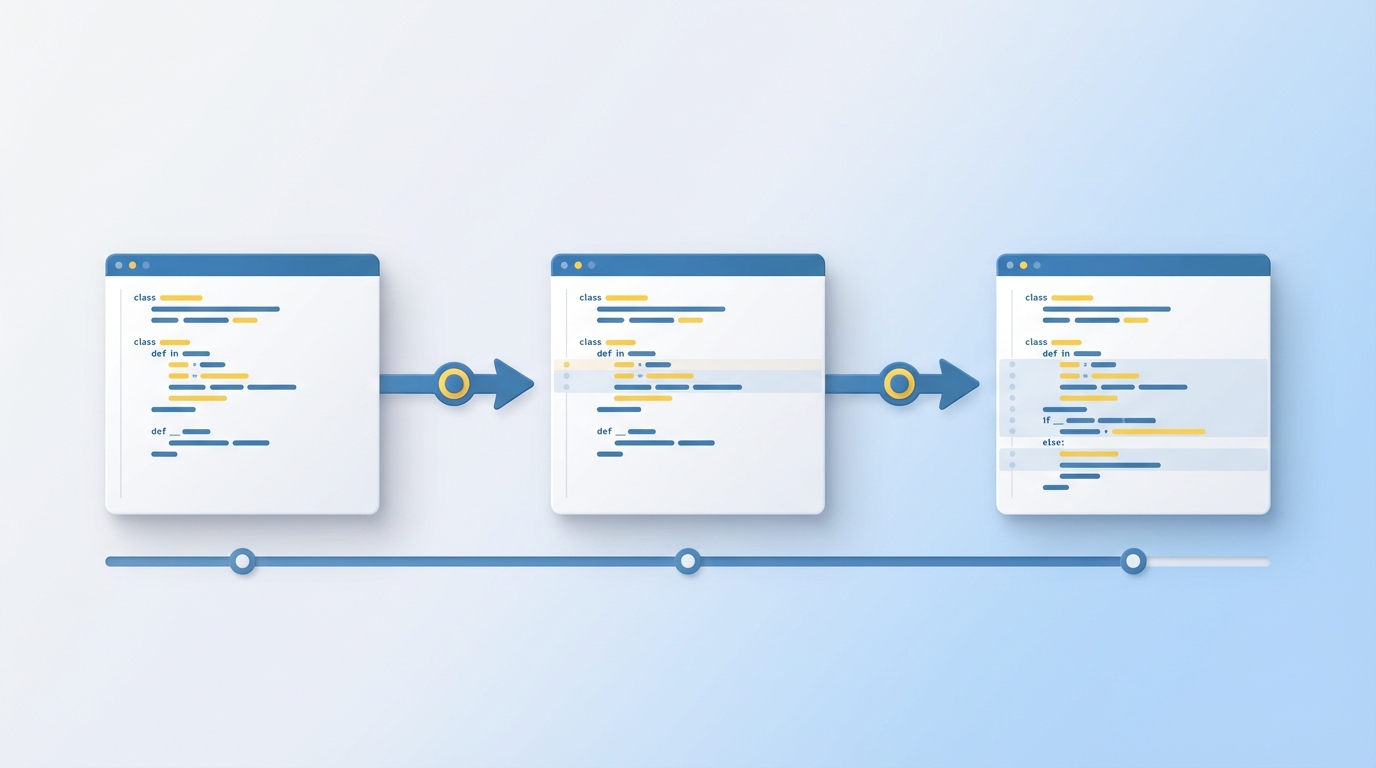
Version control systems track changes to files over time. Instead of saving multiple copies of your project (project_v1, project_v2, project_final), you keep one folder and Git records every change you make. You can see what changed, when, and why. You can also undo changes or go back to any previous version.
Git is the most widely used version control system. It works locally on your computer. In the next unit, we'll connect it to GitHub for backup and collaboration.
Installing Git
Download and install Git for your operating system:
- Windows: Git for Windows
- Mac:
brew install git(using Homebrew) - Linux:
sudo apt-get install git(Ubuntu/Debian)
After installing, configure your name and email. Git attaches this information to each change you make:
git config --global user.name "Your Name"
git config --global user.email "your@email.com"
git config --global init.defaultBranch main
Creating a Repository
A Git repository is a folder where Git tracks changes. Navigate to your project folder and run:
cd path/to/your/project
git init
This creates a hidden .git folder that stores all the version history. Your project folder is now a Git repository.
The Git Workflow
Git has a three-stage workflow:
- Working directory: Your actual files
- Staging area: Changes you're preparing to save
- Repository: The saved history
You edit files, stage the changes you want to keep, then commit them to create a permanent snapshot.
Staging Changes
After editing files, use git add to stage them:
git add filename.py      # Stage a specific file
git add .                # Stage all changed files
Check what's staged with git status:
git status
This shows which files are modified, staged, or untracked.
Committing Changes
A commit saves your staged changes with a message describing what you did:
git commit -m "Add shape drawing function"
Write clear commit messages that explain the "what" and "why." Future you will thank present you.
Viewing History
See your commit history with:
git log
This shows each commit with its unique ID, author, date, and message. Use git log --oneline for a compact view.
Project: Track Your Turtle Project
Let's put this into practice with a simple Turtle program.
Create a new folder, add a Python file:
# shapes.py
import turtle

def draw_shape(sides):
    for _ in range(sides):
        turtle.forward(100)
        turtle.left(360 / sides)

sides = int(input("Enter number of sides: "))
draw_shape(sides)
turtle.done()
Now initialize Git and make your first commit:
git init
git add shapes.py
git commit -m "Add shape drawing program"
Make a change to your code, then stage and commit again:
git add shapes.py
git commit -m "Improve input handling"
Now you have a history of your changes. Use git log to see them.
In the next unit, we'll connect this repository to GitHub for backup and collaboration.