Turtle Events
Making Graphics Interactive
In the previous unit, we covered lambda functions. Now let's make our Turtle programs interactive. Events let your program respond to user input like key presses and mouse clicks.
What Are Events?
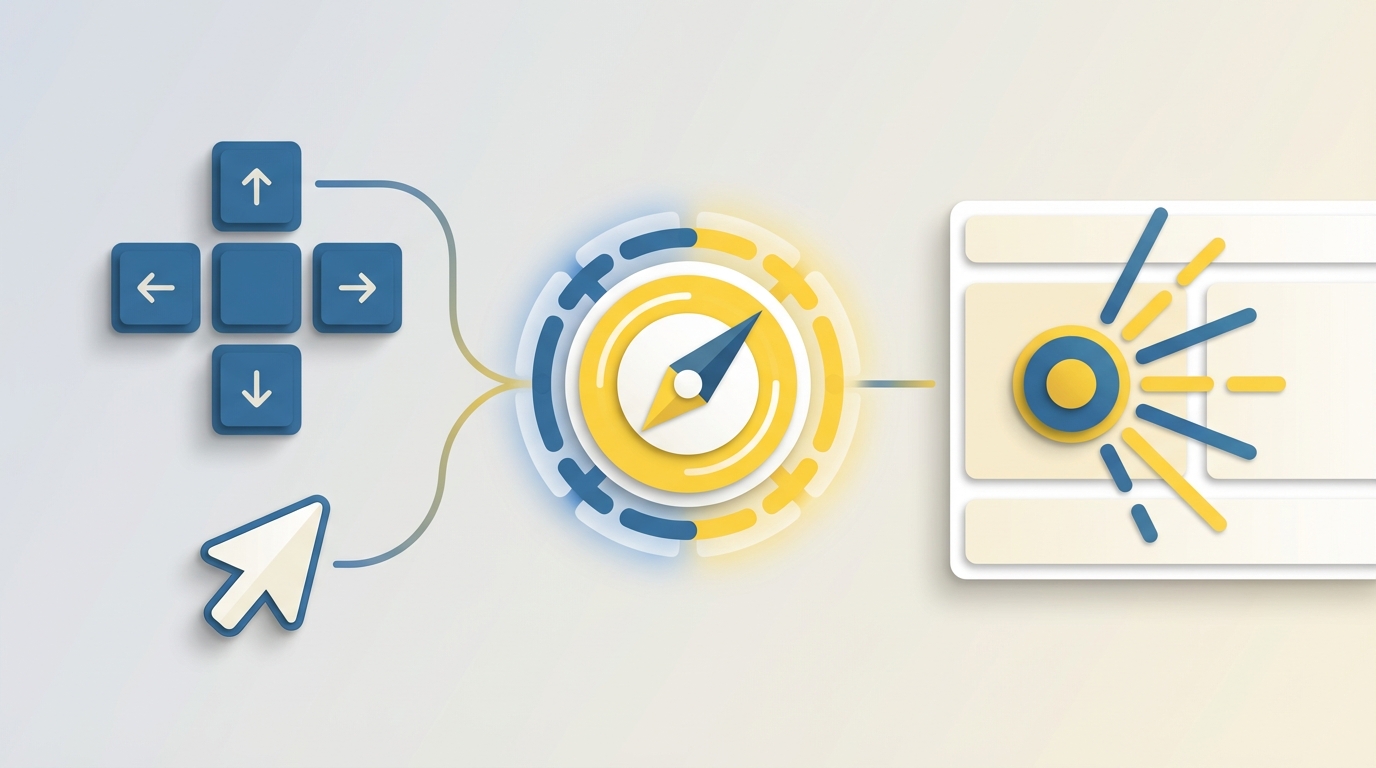
An event is something that happens when a user interacts with the graphics window. A mouse click, a key press, moving the mouse. To respond to events, you bind a function to the event. When the event occurs, Turtle calls your function.
Keyboard Events
The onkey function binds a function to a key press. The first argument is your function, the second is the key as a string.
import turtle

def move_forward():
    turtle.forward(100)

turtle.onkey(move_forward, "Up")
turtle.listen()
turtle.done()
When the user presses the Up arrow, Turtle calls move_forward and the turtle moves. Notice listen() at the end. This tells Turtle to start watching for events. Without it, key presses are ignored.
Key names include "Up", "Down", "Left", "Right", "space", and letter keys like "a" or "w".
Mouse Events
The onscreenclick function binds a function to mouse clicks. Your function receives the x and y coordinates where the click happened.
import turtle

def move_to(x, y):
    turtle.goto(x, y)

turtle.onscreenclick(move_to)
turtle.listen()
turtle.done()
Click anywhere on the screen and the turtle moves to that spot. The coordinates are passed automatically to your function.
Project: Arrow Key and Mouse Control
Let's build a program where the turtle responds to both arrow keys and mouse clicks. Arrow keys move and rotate the turtle. Clicking moves it directly to a location.
import turtle

screen = turtle.Screen()
screen.bgcolor("white")

t = turtle.Turtle()

def move_forward():
    t.forward(100)

def move_backward():
    t.backward(100)

def turn_left():
    t.left(90)

def turn_right():
    t.right(90)

def move_to(x, y):
    t.goto(x, y)

screen.onkey(move_forward, "Up")
screen.onkey(move_backward, "Down")
screen.onkey(turn_left, "Left")
screen.onkey(turn_right, "Right")
screen.onscreenclick(move_to)

screen.listen()
turtle.done()
Up moves forward, Down moves backward, Left and Right rotate the turtle. Clicking anywhere moves it to that position. Each function does one small thing, and the event bindings connect them to user input.
Try extending this: bind number keys to change colors, or add a key that clears the screen with t.clear().
In the next unit, we'll explore Python's built-in functions and how they can simplify common operations.